
Individual Registration
The registration process for individuals, residents, and visitors.
Step 1 - Account Setup
Provide your account details.

- Choose an individual account.
-
Enter your valid email address.
Please note that your email address will be the communication channel between you & the SNOC to receive notifications.
- Enter your password. Password must be at least 6 characters.
- Re-enter your password.
- Click Continue.
Step 2 - Profile Setup
Provide your personal information.
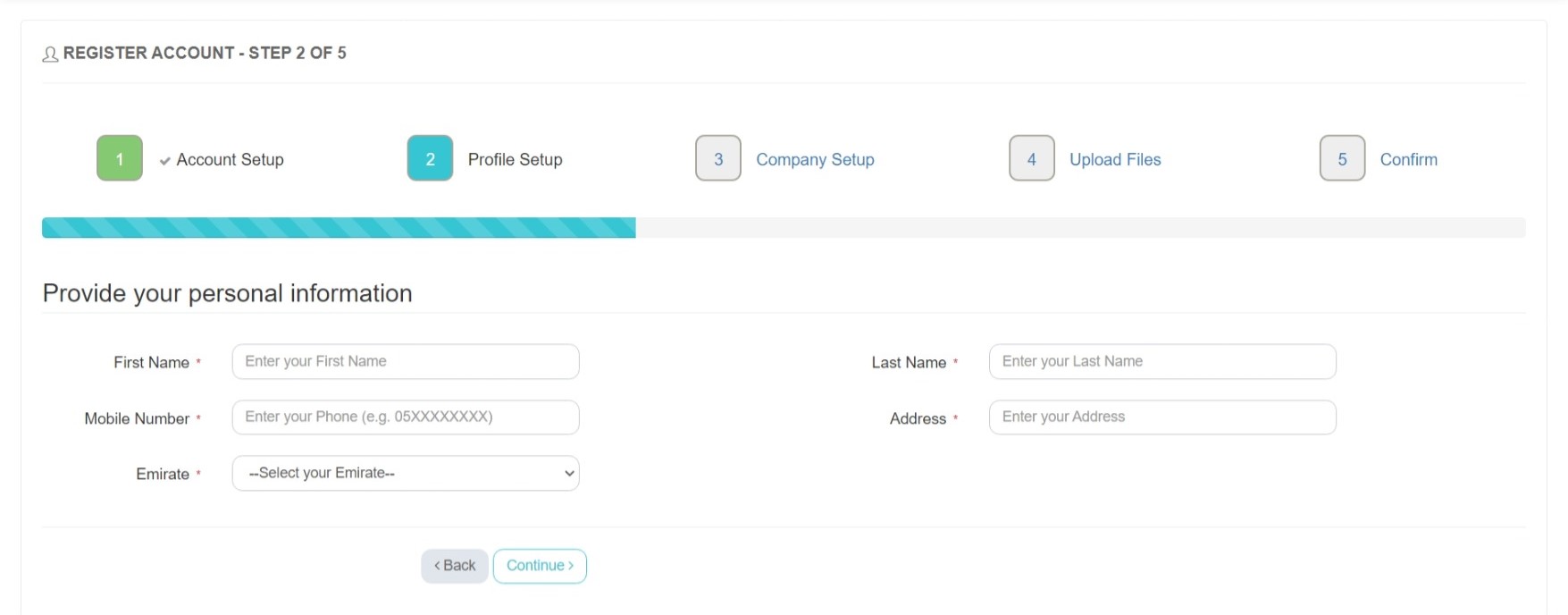
- Enter your First Name and Last Name.
- Enter your UAE Mobile Number.
- Enter your home address
- Select your Emirate.
- Click Continue.
Step 3 - Company Setup Optional
Provide your company information.

- Enter your Company Name and Company Department.
- Enter your company Contact Person.
- Enter your Company Telephone details
- Enter your Company Website.
- Enter your company TRN Certificate No and Expiration date.
- Enter your company Trade License No and Expiration date.
- Click Continue.
Step 4 - Upload Files Optional
Upload TRN Certificate and Trade License.
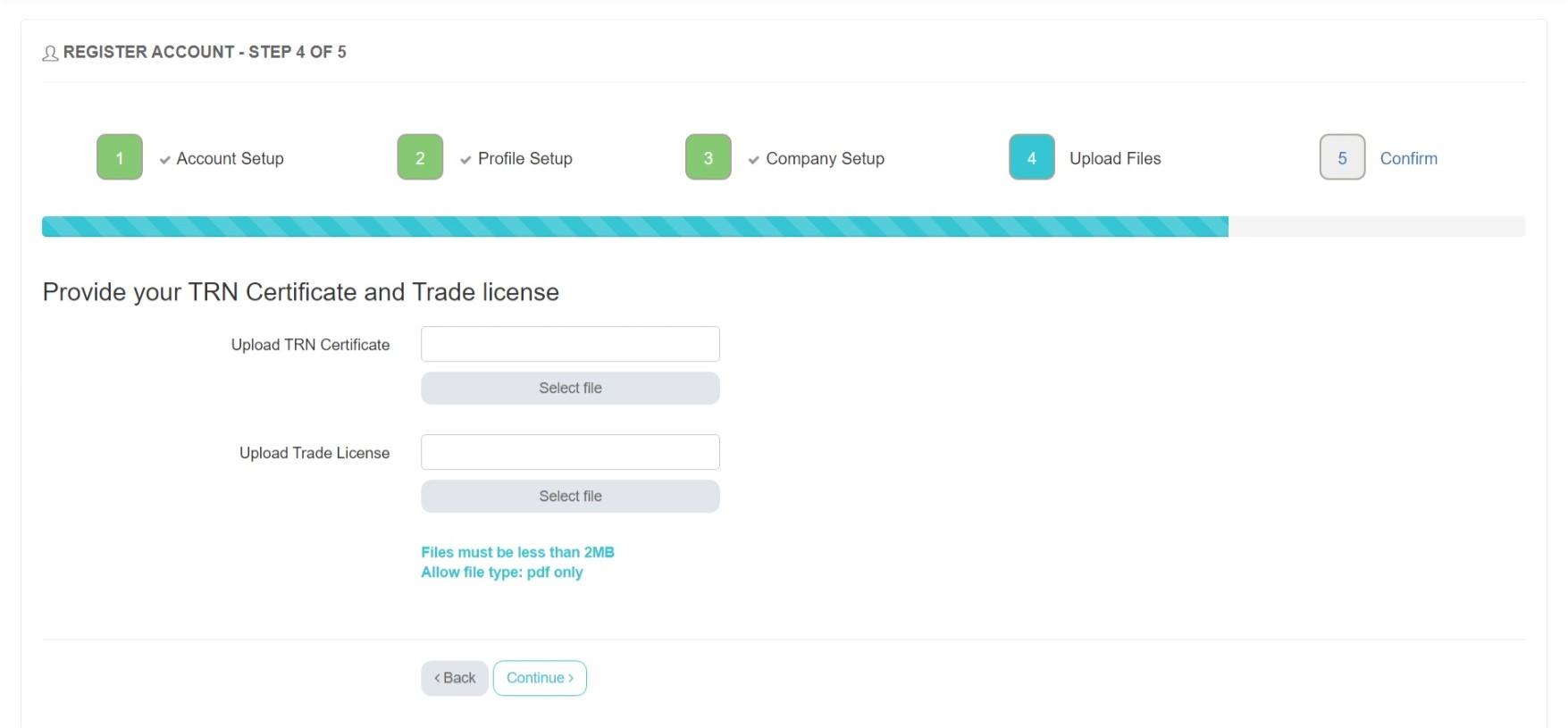
Note: Files must be less than 2MB and PDF only.
- Upload your TRN Certificate.
- Upload your Trade License.
- Click Continue.
Step 5 - Confirm
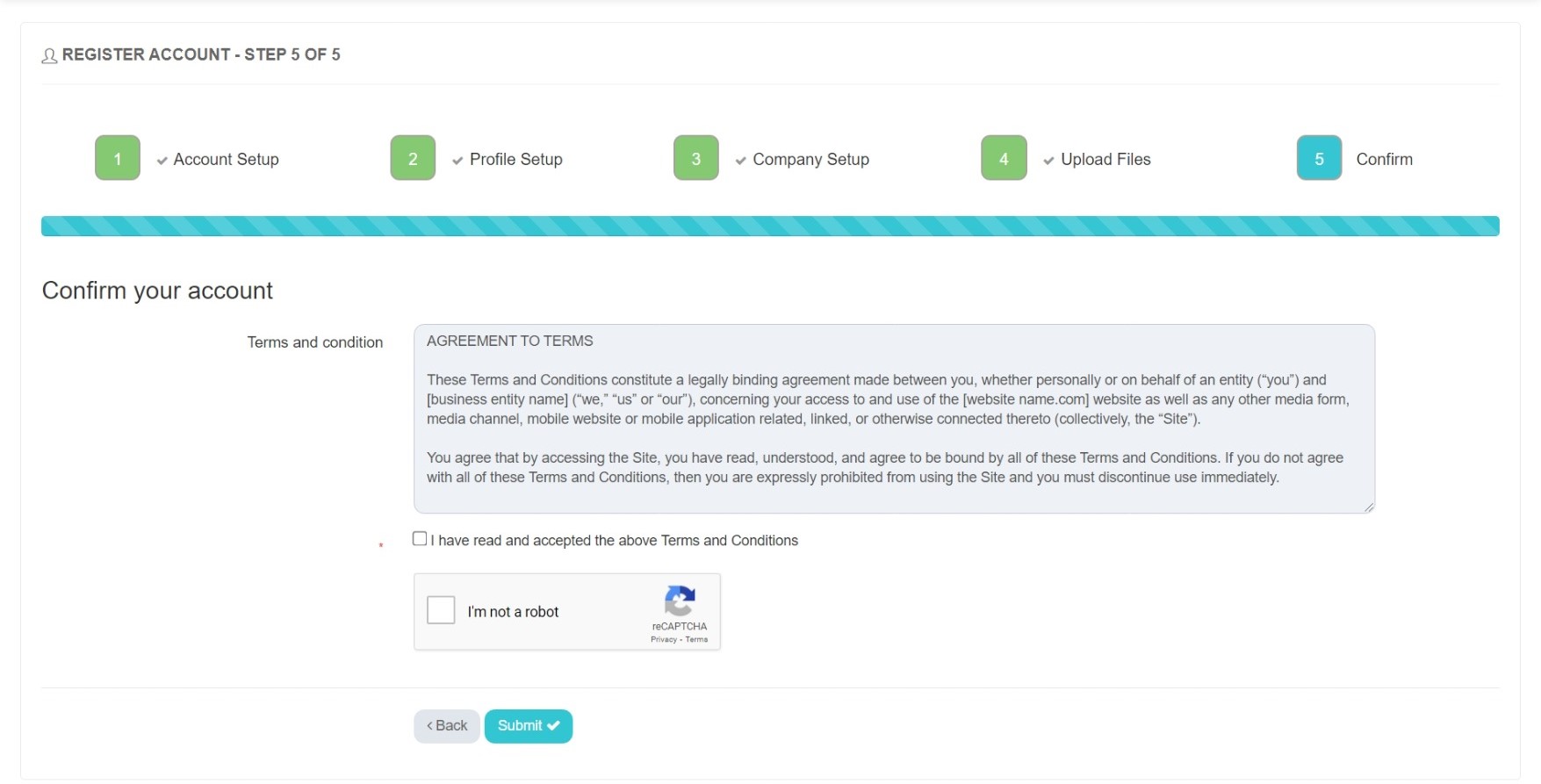
- Read and accept the terms and conditions.
- Solve the Captcha.
- Click Submit.
Verify your account
We will send a confirmation link to the email address you provide to confirm that you have access to them.

Confirm your email
Check your inbox for the account activation email to complete your account setup.

Registration Completed
Your registration is pending approval from NOC Administrator. Once approved, you will receive an email notification.

Business Sector Registration
Registration’s process for Business Sector.
Step 1 - Account Setup
Provide your account details.
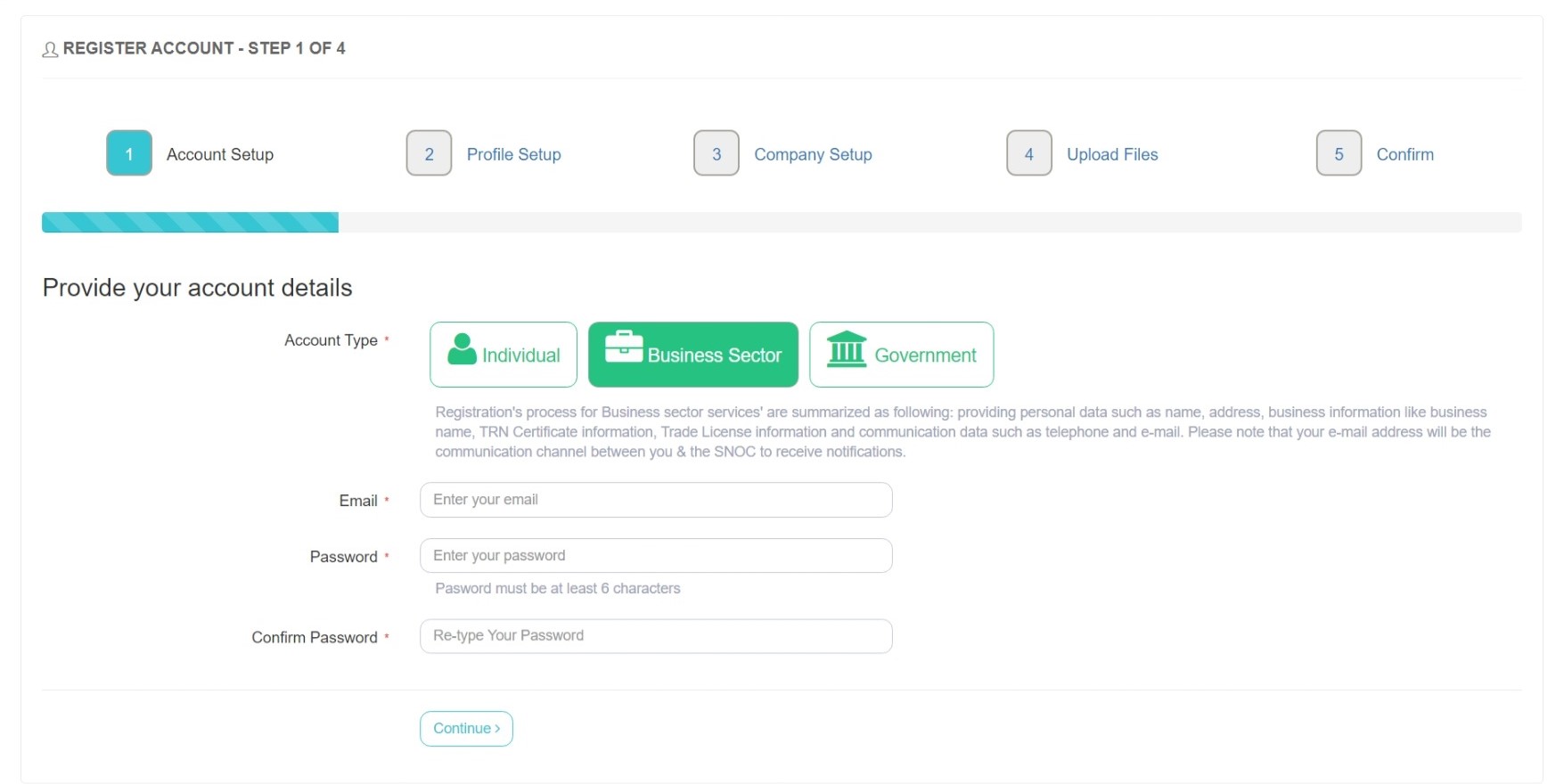
- Choose Business Sector account.
-
Enter your valid email address.
Please note that your email address will be the communication channel between you & the SNOC to receive notifications.
- Enter your password. Password must be at least 6 characters.
- Re-enter your password
- Click Continue.
Step 2 - Profile Setup
Provide your personal information.

- Enter your First Name and Last Name.
- Enter your UAE Mobile Number.
- Enter your home address
- Select your Emirate.
- Click Continue.
Step 3 - Company Setup
Provide your company information.

- Enter your Company Name and Company Department.
- Enter your company Contact Person.
- Enter your Company Telephone details
- Enter your Company Website. Optional
- Enter your company TRN Certificate No and Expiration date.
- Enter your company Trade License No and Expiration date.
- Click Continue.
Step 4 - Upload Files
Upload TRN Certificate and Trade License.

Note: Files must be less than 2MB and PDF only.
- Upload your TRN Certificate.
- Upload your Trade License.
- Click Continue.
Step 5 - Confirm

- Read and accept the terms and conditions.
- Solve the Captcha.
- Click Submit.
Verify your account
We will send a confirmation link to the email address you provide to confirm that you have access to them.
Confirm your email
Check your inbox for the account activation email to complete your account setup.
Registration Completed
Your registration is pending approval from a NOC Administrator. Once approved, you will receive an email notification.
Government Registration
The registration process for Government entities.
Step 1 - Account Setup
Provide your account details.
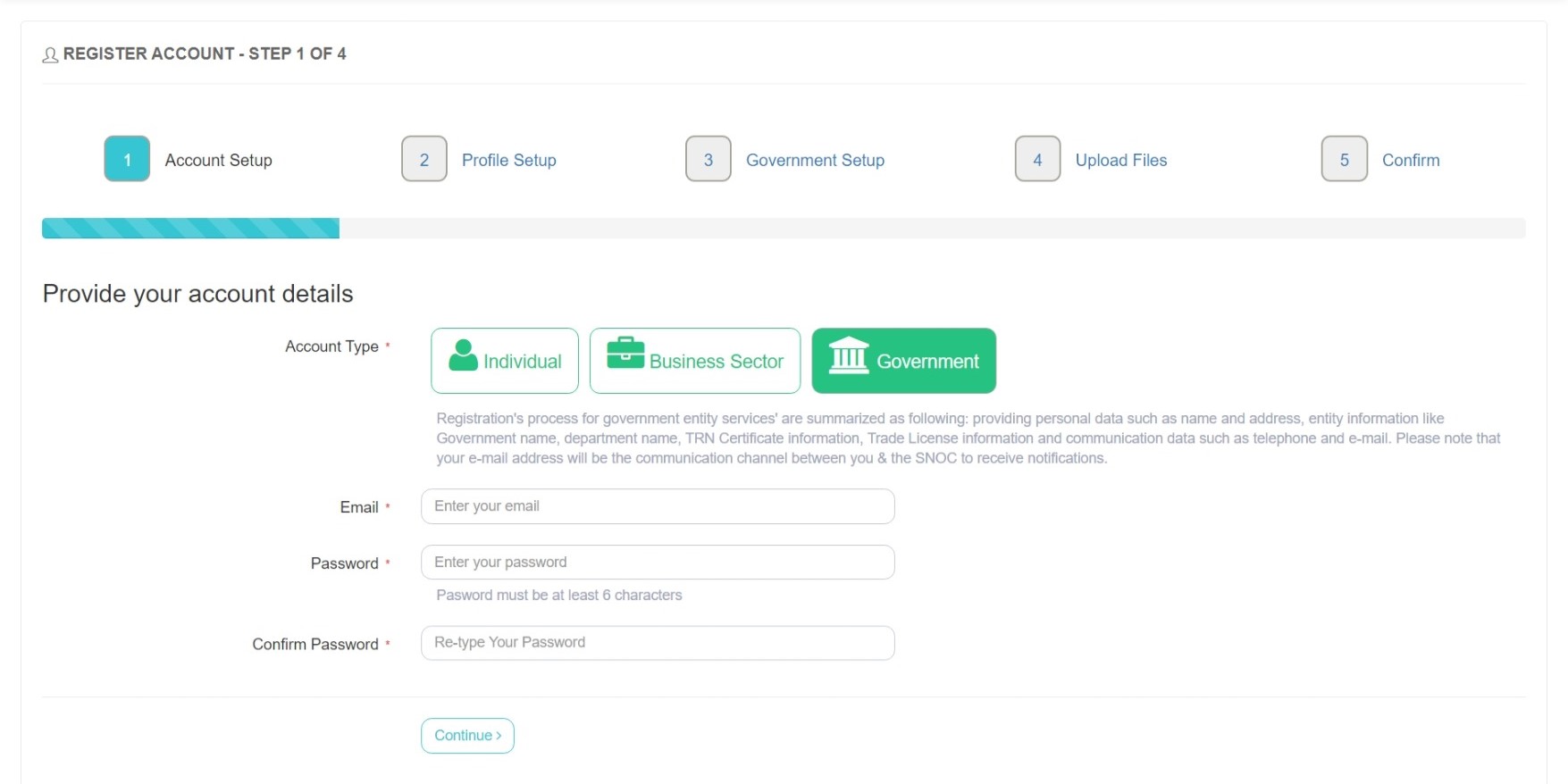
- Choose Government account.
-
Enter your valid email address.
Please note that your e-mail address will be the communication channel between you & the SNOC to receive notifications.
- Enter your password. Password must be at least 6 characters.
- Re-enter your password
- Click Continue.
Step 2 - Profile Setup
Provide your personal information.

- Enter your First Name and Last Name.
- Enter your UAE Mobile Number.
- Enter your home address
- Select your Emirate.
- Click Continue.
Step 3 - Government Setup
Provide your government information.

- Enter your Government Name and Government Department.
- Enter your government Contact Person.
- Enter your Government Telephone details
- Enter your Government Website. Optional
- Enter your government TRN Certificate No.
- Enter TRN certificate Expiration date. Optional
- Enter your government Trade License No.
- Enter Trade License Expiration date. Optional
- Click Continue.
Step 4 - Upload Files
Upload TRN Certificate and Trade License

Note: Files must be less than 2MB and PDF only.
- Upload your TRN Certificate.
- Upload your Trade License.
- Click Continue.
Step 5 - Confirm

- Read and accept the terms and conditions.
- Solve the Captcha.
- Click Submit.
Verify your account
We will send a confirmation link to the email address you provide to confirm that you have access to them.
Confirm your email
Check your inbox for the account activation email to complete your account setup.
Registration Completed
Your registration is pending approval from a NOC Administrator. Once approved, you will receive an email notification.